 Opsino
1. Choose a photo
Tap the photo icon to the left of Help, then choose an image in the iOS photo picker. Opsino receives only this photo; your original stays unchanged. The camera and flashlight are off while you explore it.

2. Tap the area you want to identify
Tap the image to place a measurement circle and see the color name with guidance. Swipe up or down on the circle to adjust its size. Try to include only the color you want to identify. Choose Show details to read more about the reading.
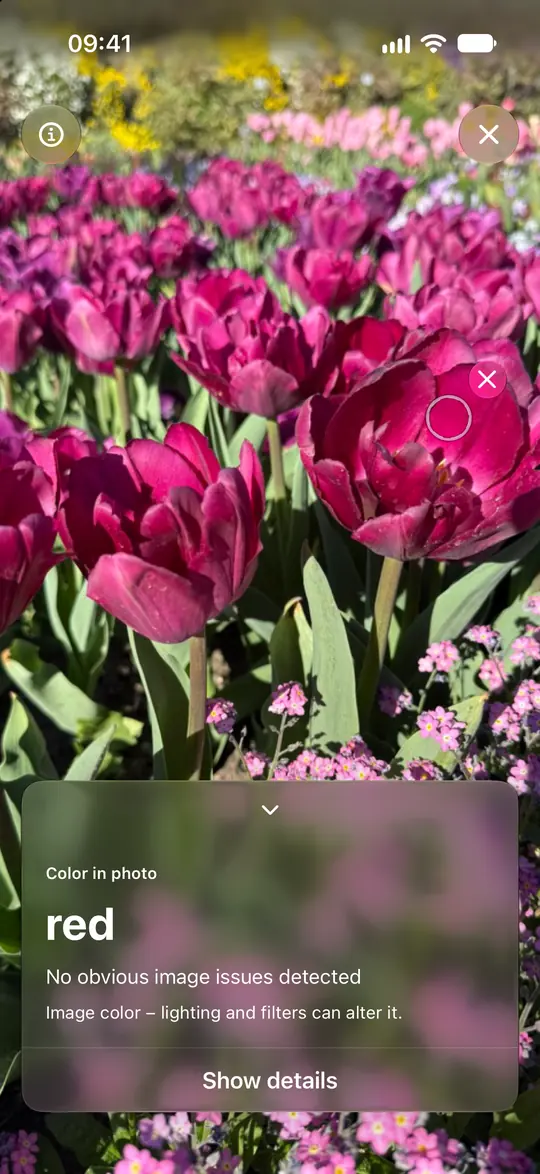
3. Zoom in and explore another area
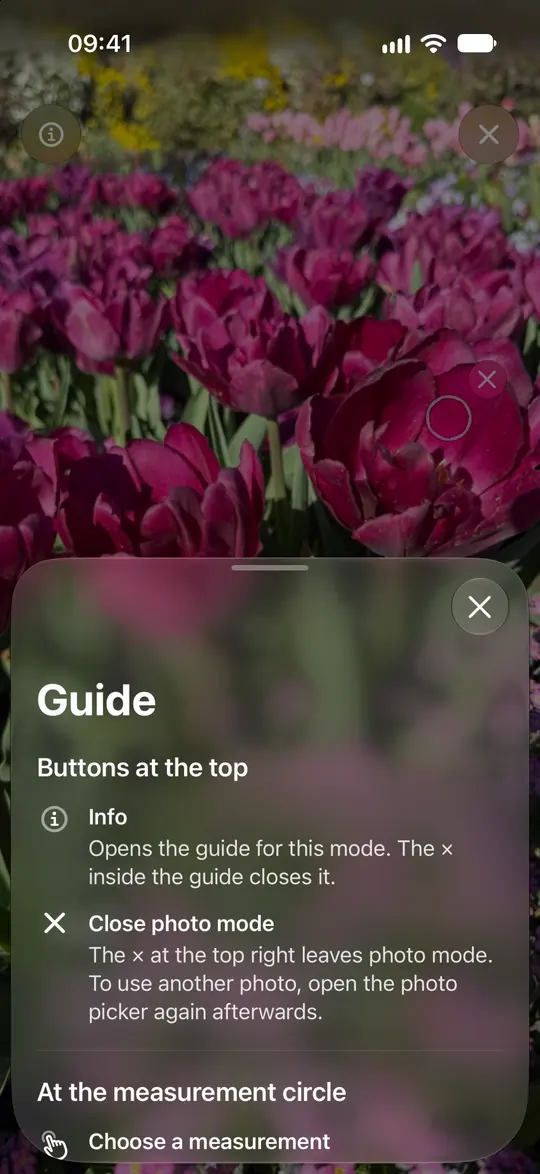
Use two fingers to zoom and move the photo. The circle stays on the same image location. Double-tap to see the whole photo. To choose a new area, first remove the reading with the small × beside the circle; the photo stays intact. The arrow on the result card collapses it. The large × at the top closes photo mode.
Understand the image color
Opsino describes the color stored in the photo. Lighting, white balance and filters used in the picture can change it from the original object’s color. Guidance concerns the selected image area, such as very dark or overexposed patches, mixed colors or too few pixels. A result without detected issues does not prove the object’s true color.
